
How to Put LED Lights Behind a Monitor
A step-by-step guide to fitting an LED backlight behind a computer monitor, from measuring the strip length to mounting, power, and first setup.
 By Ethan Cole
Updated October 30, 2026
Putting LED lights behind a monitor takes about 15 minutes and no tools. The part people get wrong is not the sticking, it is choosing a strip that fits and planning the cable before the adhesive goes on. This guide walks through sizing, placement, mounting, power, and the first software setup for screen-sync kits.
If you have not picked a kit yet, start with our guide to the best monitor backlights.
What You Need
- A monitor backlight kit or USB LED strip sized for your monitor
- Isopropyl alcohol and a lint-free cloth to clean the back panel
- A free USB port on the computer or a powered USB hub (some kits ask for USB 3.0)
- For screen-sync kits: the maker’s desktop software installed on your PC or Mac
- Optional: cable clips or ties
Step 1: Measure Your Monitor
For a standard 16:9 monitor, the outer edge is about 2.72 times the diagonal. A strip is mounted a little in from the edge, so it can be somewhat shorter than this.
| Monitor | Approx. width x height | Approx. outer edge |
|---|---|---|
| 24 inch 16:9 | 20.9 x 11.8 in | 5.4 ft |
| 27 inch 16:9 | 23.5 x 13.2 in | 6.1 ft |
| 32 inch 16:9 | 27.9 x 15.7 in | 7.3 ft |
| 34 inch 21:9 ultrawide | 31.3 x 13.4 in | 7.4 ft |
Kits sold for monitors usually come in sizes (24, 27, 32, 34 inch). Pick the one for your screen. A strip that is too short leaves a side dark; a TV strip that is much too long will have to be trimmed, if the maker allows it, or doubled back.
Step 2: Choose Three or Four Sides
Most monitors sit on a stand or arm, and the stand’s mount sits in the middle of the back. Four-sided kits run along the bottom too, which gives a fuller glow if the bottom edge is visible against the wall. Three-sided kits skip the bottom, which is cleaner when the monitor sits low over the desk. Some software, such as the DX-Lighting app used by DS kits, lets you set either layout.
Step 3: Plan the Start Point and Cable
Find where the strip’s USB lead or controller starts, usually marked on the strip or in the manual. Place that start close to where the cable will run down to the computer, usually the bottom corner nearest your PC. For screen-sync kits the software needs to know where the strip starts and which way it runs, clockwise or counterclockwise, so note it now.
Step 4: Clean and Dry-Fit
Wipe the back panel with isopropyl alcohol and let it dry. Lay the strip around the back without peeling the backing, keeping it about 1 to 2 inches in from the edge so the LEDs face the wall but stay hidden from the front. On a curved monitor, keep to the flatter part of the panel. Check that it clears the stand mount, vents, and ports.
Step 5: Stick It Down
Peel the backing a section at a time and press firmly along the strip. At corners, follow the kit’s corner pieces or mounts if it has them; otherwise make a gentle bend rather than a sharp fold, which can damage the strip. Some kits, like Fiotura’s, include extra adhesive pads and clips for the corners.
Step 6: Power and Software
- Plug the USB lead into the computer or a powered hub. If the kit has two USB plugs, as some long ultrawide strips do, connect both.
- For a plain USB strip, that is it: use the remote or switch.
- For a screen-sync kit, install the maker’s software (for example Govee Desktop, Skydimo, SyncLight, or the Nanoleaf Desktop App), select your display, and set the strip’s start point and direction.
- On a Mac, allow Screen Recording permission for the app when asked, then reopen it. wacuaao’s listing calls this step out.
Our guide to syncing LED lights to a monitor covers the software side in more detail.
Troubleshooting
| Problem | Likely cause and fix |
|---|---|
| Lights dim or flicker | Not enough USB power. Use a USB 3.0 port, connect both plugs on dual-USB kits, or try a powered hub. |
| Colors on the wrong side | Start point or direction set wrong in the software. Reverse the direction or change the start corner. |
| No sync with Netflix or other streaming | Copy-protected video cannot be read by the software. Several sellers note this. Games and desktop content are not affected. |
| Lights stay on when the monitor is off | Many USB ports stay powered in standby. Turn the lights off in the app or remote, or use a port that powers down with the computer. |
| Strip peeling off | Panel was not clean or is textured. Re-clean, then add clips or the kit’s spare pads. |
Who Should Look Elsewhere
If your monitor sits flush against the wall, there is no gap for the light to spread, and a backlight will show only as a thin bright line. A monitor light bar that lights the desk from above, or a lamp, may suit you better. If you rent a monitor or plan to resell it soon, consider the adhesive residue before sticking anything on.
Safety Notes
These are low-voltage USB products. Keep the strip away from the monitor’s vents, do not cover them, and do not pinch the strip or cable under a monitor arm. If a strip or controller gets hot or smells, unplug it.
Kits Mentioned
The Govee G1 is a four-sided kit for 27 to 34 inch monitors. The wacuaao 27 inch kit is a Skydimo-based four-sided option. The Luminoodle white strip is a simple USB bias light for monitors up to 24 inch.

wacuaao 27 Inch Monitor Backlight


As an Amazon Associate we earn from qualifying purchases. Product prices and availability are accurate as of the date/time indicated.

Govee Gaming Light for Monitor G1


As an Amazon Associate we earn from qualifying purchases. Product prices and availability are accurate as of the date/time indicated.
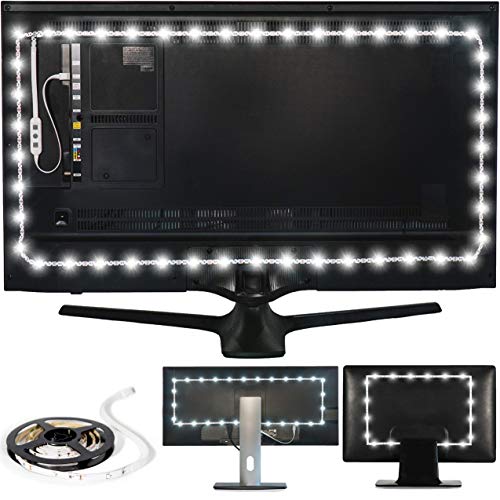
Luminoodle Bias Lighting


As an Amazon Associate we earn from qualifying purchases. Product prices and availability are accurate as of the date/time indicated.
Sources
Monitor dimensions are calculated from the screen’s diagonal and aspect ratio. Installation steps follow the makers’ Amazon listings and manuals as described on those listings, checked October 2026. We did not install these kits ourselves. Our method is on the How We Review page.
Frequently Asked Questions
Will LED strip adhesive damage my monitor?
It can leave residue on removal. Peel slowly, and clean residue with isopropyl alcohol. Avoid stickers on vents or textured panels.
Can I put a TV LED strip behind a monitor?
Yes, if the length is close to your monitor’s edge. Many 24 to 32 inch TV strips also list monitors. Too much extra length is the usual problem.
Where should I plug in a monitor backlight?
Screen-sync kits need the computer, since the software sends them color data. Plain USB strips can use any USB port, including the monitor’s own if it has one.
About the author
Ethan Cole leads research and editing at WikiHomeLED, comparing LED lighting for the home through manufacturer specs, manuals, safety listings and owner feedback. Every product is scored against the criteria on our How We Review page, and picks are updated when models change.